Tutorials
Run Two Models on One GPU
On this page
Use case: Run two small chat models simultaneously on one NVIDIA GPU, set a separate dGPU memory limit for each, and put one of them to sleep and wake it.
When you finish, two single-replica deployments share the same GPU and can be called separately. B still responds while A sleeps, and A resumes responding after waking.
All screenshots in this tutorial show the English UI, including both running deployments and model A after it enters L1 sleep.
Before You Begin
| What you need | How to check |
|---|---|
| A working GPUWorks console and an account with the required permissions | You can view nodes, create and delete deployments, and use or create inference API tokens |
| An NVIDIA GPU approved for experimentation with enough available capacity | This example uses an RTX 4090 (48 GiB). The node is connected and online, and the GPU details show dGPU available; the next step shows where to check. If you need to connect a node, see Connect Compute Nodes. For other GPU models, first confirm compatibility with the template |
| Two small chat models and their corresponding vLLM templates | Use Qwen/Qwen3-1.7B and Qwen/Qwen3-4B from ModelScope, with NVIDIA general-purpose BF16 vLLM templates for both. The template image uses CUDA 13.0, so the node driver must be ≥ 580 |
| Model files and images | They are already on the target node, or can be downloaded or synced. See Download and Sync Models; for offline environments, see Offline Deployment |
| Enough host memory | L1 sleep requires enough memory to hold model A's weights |
| A client terminal that can reach the gateway | Install curl and use Bash. You do not need to log in to the GPU node or change the working directory |
The 12 GiB and 16 GiB limits below have been verified in the RTX 4090 (48 GiB) environment described above. For other environments, evaluate first, then use actual startup and request results to confirm whether you can continue.
1. Confirm the Target GPU and Prepare the Models
- Open the target GPU's details under GPU Devices, note its node and GPU index, and confirm that Basic information → dGPU shows dGPU available.
- Check Instances and GPU memory to confirm there is enough capacity for two new deployments.
- Open Inference Services and confirm that the deployment names and public model names
dgpu-demo-aanddgpu-demo-bare not in use.
If the target GPU is occupied by one of your experimental deployments that you no longer need, open that deployment in Inference Services, click Stop, and confirm. Wait for the instance to be removed and the GPU to be released; keep the models and images. Only operate on your own experimental deployments, leaving other workloads alone.
dGPU availability means you can request instances with memory limits. Whether both models fit still requires evaluating and starting each one.
Register and Download Both Models
Prepare A and B as shown in the table and download them to the node you noted earlier. You can reuse the corresponding models if they have already been downloaded to the target node.
| Field | Model A | Model B |
|---|---|---|
| Source | ModelScope | ModelScope |
| Source ID | Qwen/Qwen3-1.7B | Qwen/Qwen3-4B |
| Name | dgpu-demo-a-ms | dgpu-demo-b-ms |
- Open Models → Register model and register any missing models using the table. Leave Revision blank and click Confirm registration.
- For each model not yet downloaded to the target node, click Download to…. For Storage, select the target node's local storage (it is selected automatically if only one writable local storage is available). Under Nodes, select the node you noted earlier and click Download.
- Click the model name to open its details. Under Model files, wait until both copies on the target node show Available before deploying.
dgpu-demo-a-ms and dgpu-demo-b-ms are example registration names in this tutorial. If a model with the same source ID already exists, select your corresponding registered entry. The deployment names and public model names below are dgpu-demo-a and dgpu-demo-b.
2. Configure and Start Model A
- Open Inference Services → Create Deployment → Quick Deploy. Under Basic Configuration, select model
dgpu-demo-a-msand Target accelerator NVIDIA. Under Recommended Inference Template, select Qwen3-1.7B and the general · vllm · balanced profile, and check the BF16 weights label. If the Use a registered model? page appears, selectdgpu-demo-a-mswith the MS label and click Use this model and deploy. - Check that the model source ID is
Qwen/Qwen3-1.7Band the image isgpuworks/gpuworks-runner:cuda13.0-vllm0.30.0-r4. Fill in the following table, keeping the template image and launch method.
| Field or action | Model A | Model B (fill in during the next step) |
|---|---|---|
| Model | dgpu-demo-a-ms (Qwen/Qwen3-1.7B) | dgpu-demo-b-ms (Qwen/Qwen3-4B) |
| Inference Engine / Target accelerator | vLLM / NVIDIA | vLLM / NVIDIA |
| Deployment Name | dgpu-demo-a | dgpu-demo-b |
| Public Model Name | dgpu-demo-a | dgpu-demo-b |
| Nodes | Single node → Manual; select the node noted in section 1 | The same node |
| Select node and GPUs | Select only the GPU index noted in section 1 | The same GPU index |
| Tensor Parallelism (TP) / Pipeline Parallelism (PP) | 1 / 1 | 1 / 1 |
| Replicas | 1 | 1 |
| Maximum Context Length | 2048 | 2048 |
| GPU Memory Utilization | 0.9 | 0.9 |
| Sleepable | On | On |
| dGPU Memory | Enable, enter 12 GiB initially, then evaluate | Enable, enter 16 GiB initially, then evaluate |
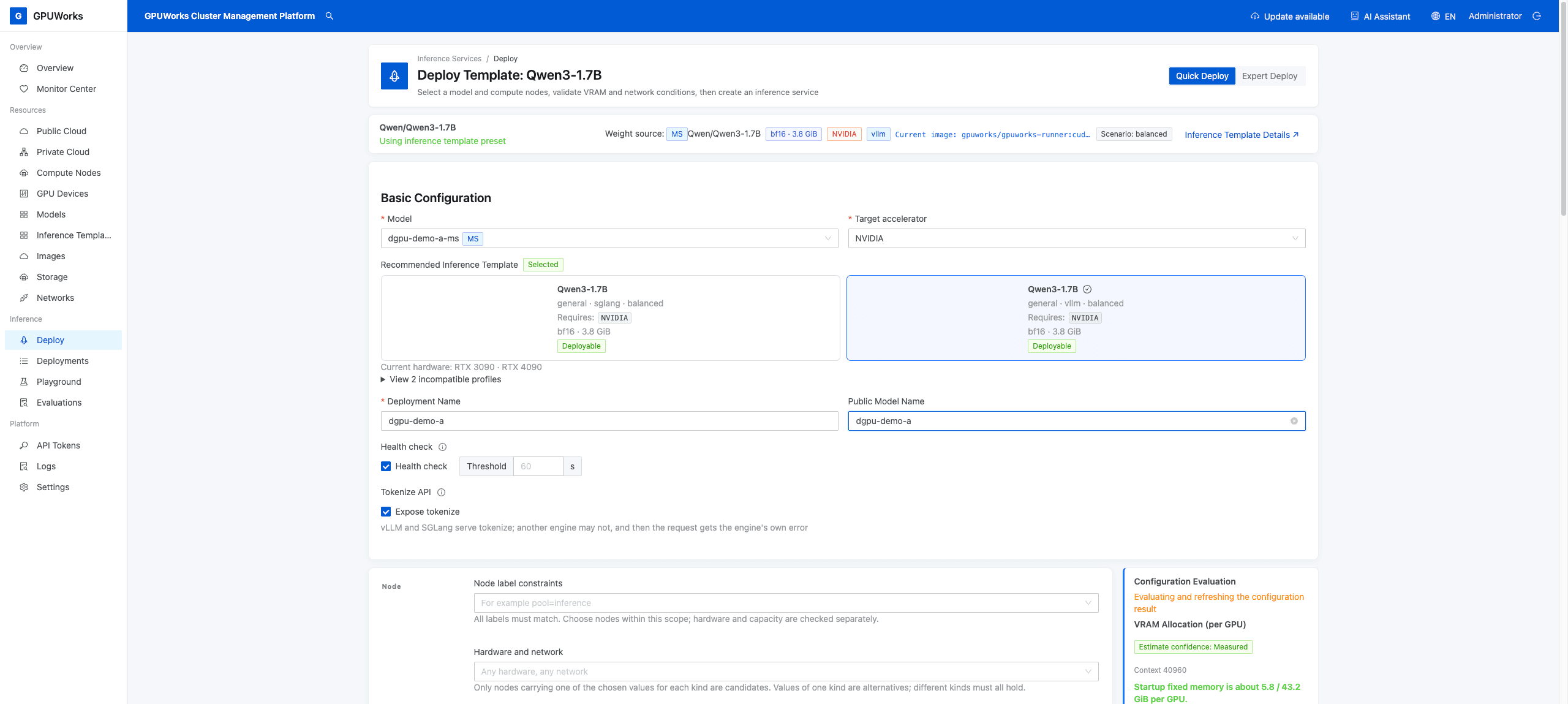
Model A: Select the registered model from MS and the vLLM profile. Enter dgpu-demo-a for both the deployment name and public model name.
- Enable Sleepable (the card turns blue) and dGPU Memory. Change the default
16to A's limit of12GiB. GPU Memory Utilization of0.9is calculated against this limit. - Wait for reevaluation on the right. Confirm the node and GPU are correct, there are no resource or configuration errors, and the limit accommodates the weights, engine overhead, and KV cache (conversation context cache) needed for the maximum context length.
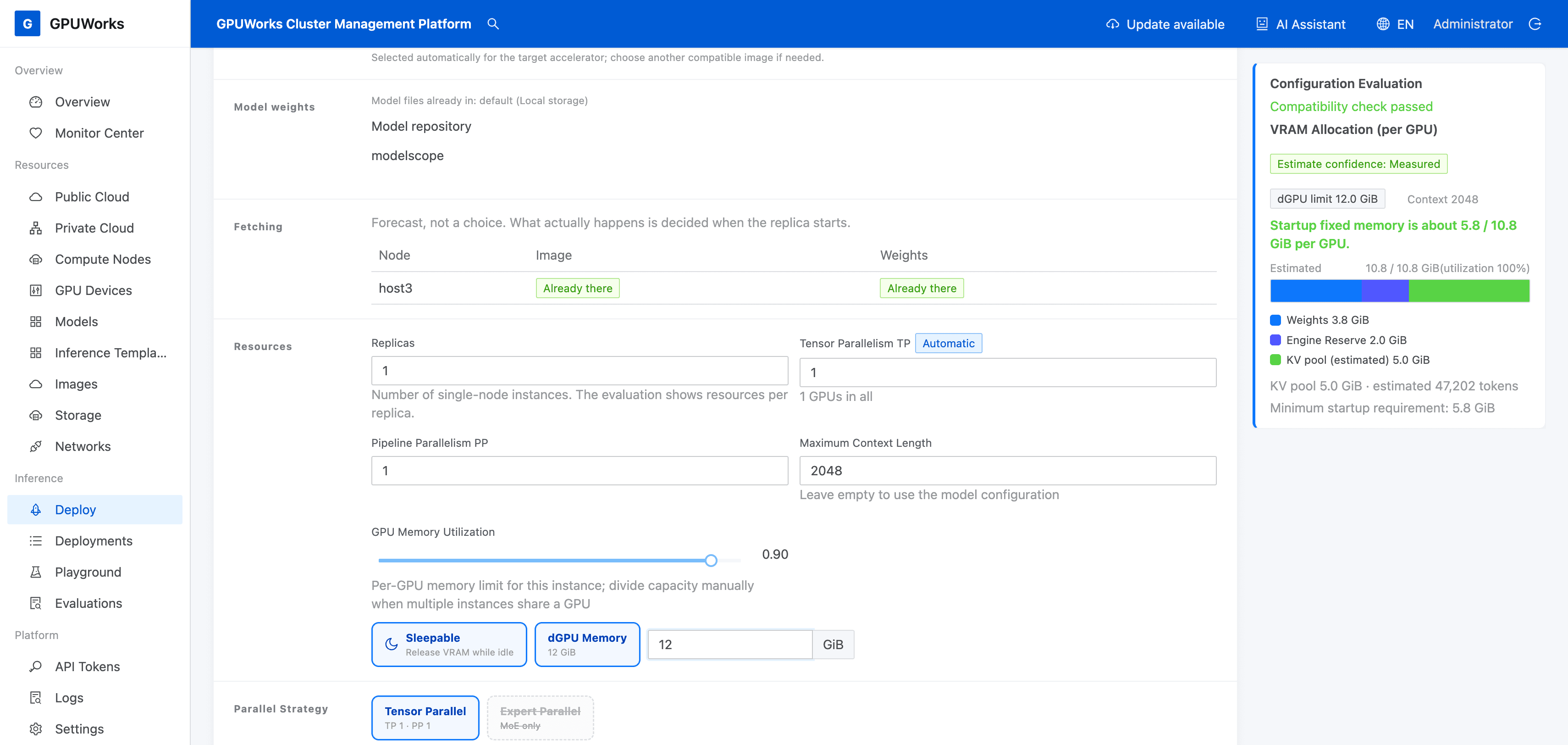
Model A: Enable Sleepable and set a 12 GiB GPU memory limit and 2048 context length. The configuration evaluation is on the right; deployment and request verification are still required.
- After evaluation passes, click Deploy and open
dgpu-demo-ain Inference Services. Wait for the instance to become Running, then record the deployment ID, node, GPU index, and final limit.
dGPU Memory is the GPU memory limit for a single instance. Runtime overhead exists beyond this limit, so the sum of the limits alone is not sufficient; check the evaluation on the page. For details, see How dGPU Works.
3. Start Model B on the Same GPU
- Keep A running and reopen Inference Services → Create Deployment → Quick Deploy. Select the model and target chip from column B of the table in section 2. Under Recommended Inference Template, select Qwen3-4B, using the same profile and BF16 weights label as A.
- Check that the model is
dgpu-demo-b-ms, the source ID isQwen/Qwen3-4B, and the image matches A's. Handle the model confirmation page as you did for A, selecting B with the MS label. - Fill in the remaining settings from column B of the table in section 2. Use Manual to select the same node as A, and select only the same GPU index.
- Enable Sleepable and dGPU Memory, and confirm the limit is
16GiB. A already occupies resources, so wait for this evaluation; do not reuse the available capacity shown before creating A. - After evaluation passes, click Deploy, wait for B's instance to become Running, and record its deployment ID and final configuration.
- Check the GPU index in both A's and B's deployment details. Open that GPU's details under GPU Devices and confirm that both
dgpu-demo-aanddgpu-demo-bappear under Instances.
A and B must run simultaneously before you verify requests. Do not free capacity by putting A or other workloads to sleep.
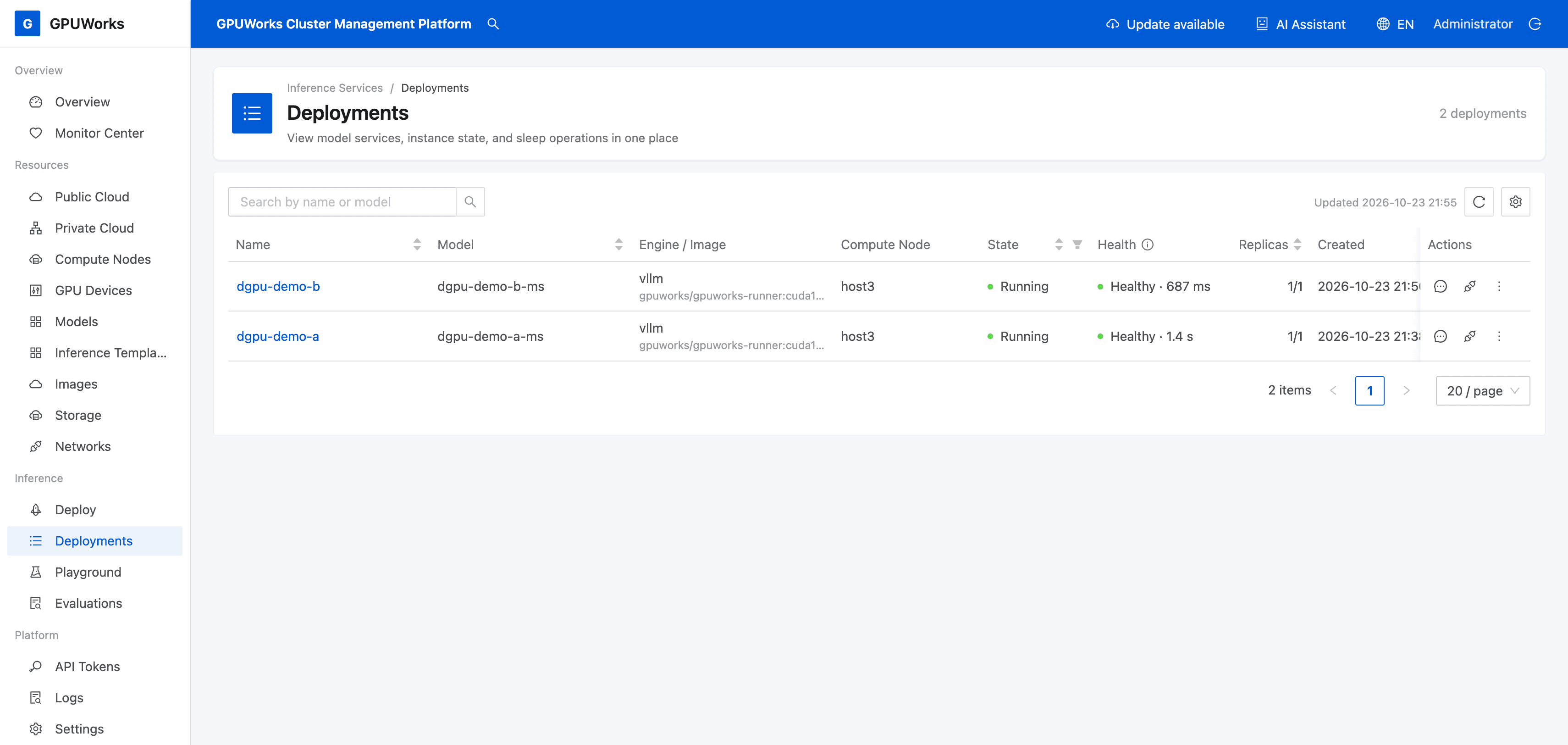
Both deployments are running and healthy. The list only shows that they are on the same node; you must also check the instance details to confirm that both GPU indexes are 0.
4. Call Each Model
- Have your saved full
gw-inference token ready. If you have no usable token, open API Tokens → Inference tokens → Create inference token, enterdgpu-demoas the name, and click Create. - After creating a token, click Copy API token in the Save this API token now page, save the full value securely, then click I have saved it. Skip this if you already have a full token. The prefix in the list cannot be used for requests.
- Run the following commands in a Bash terminal on a client that can reach the gateway. Replace the example address with the actual gateway address, without a trailing
/v1. For the default same-port deployment, use the console address.
GPUWORKS_URL='http://192.0.2.10:8800'
read -r -s -p 'Inference API token: ' GPUWORKS_API_KEY
printf '\n'- Call model A, ensuring that
modelin the request matches the Public Model Name.
curl -sS -w '\nHTTP %{http_code}\n' "$GPUWORKS_URL/v1/chat/completions" \
  -H "Authorization: Bearer $GPUWORKS_API_KEY" \
  -H 'Content-Type: application/json' \
-d '{"model":"dgpu-demo-a","messages":[{"role":"user","content":"Introduce yourself in one sentence."}],"max_tokens":256,"chat_template_kwargs":{"enable_thinking":false}}'- Call model B.
curl -sS -w '\nHTTP %{http_code}\n' "$GPUWORKS_URL/v1/chat/completions" \
  -H "Authorization: Bearer $GPUWORKS_API_KEY" \
  -H 'Content-Type: application/json' \
  -d '{"model":"dgpu-demo-b","messages":[{"role":"user","content":"Introduce yourself in one sentence."}],"max_tokens":256,"chat_template_kwargs":{"enable_thinking":false}}'
Completion criteria: Both requests return HTTP 200 and a response in choices[0].message.content; the responses do not have to be identical. Use the different public model names to verify each service separately.
The example disables Qwen3 thinking mode and limits output to 256 tokens to make a short response easier to check. Keep the terminal open to repeat these two commands when putting A to sleep and waking it.
Only proceed to the sleep experiment after both requests succeed.
5. Put A to Sleep and Confirm That B Still Responds
- Open the target GPU's details under GPU Devices and note its GPU memory usage for comparison after sleep.
- Open the details under Inference Services → dgpu-demo-a and click Sleep (Memory / L1). In the page, select Finish in-flight requests first (recommended) and click Sleep.
- Wait until the deployment details show the orange Sleeping · L1 (Quick / Memory) label. Then open the target GPU's details and confirm that GPU memory usage has dropped. Some GPU memory remains occupied during sleep; it does not need to drop to zero.
- In the original terminal, rerun A's command from section 4. Confirm it returns
HTTP 503with an error explaining that the model is asleep. Then call B and confirm it still returnsHTTP 200and a response.
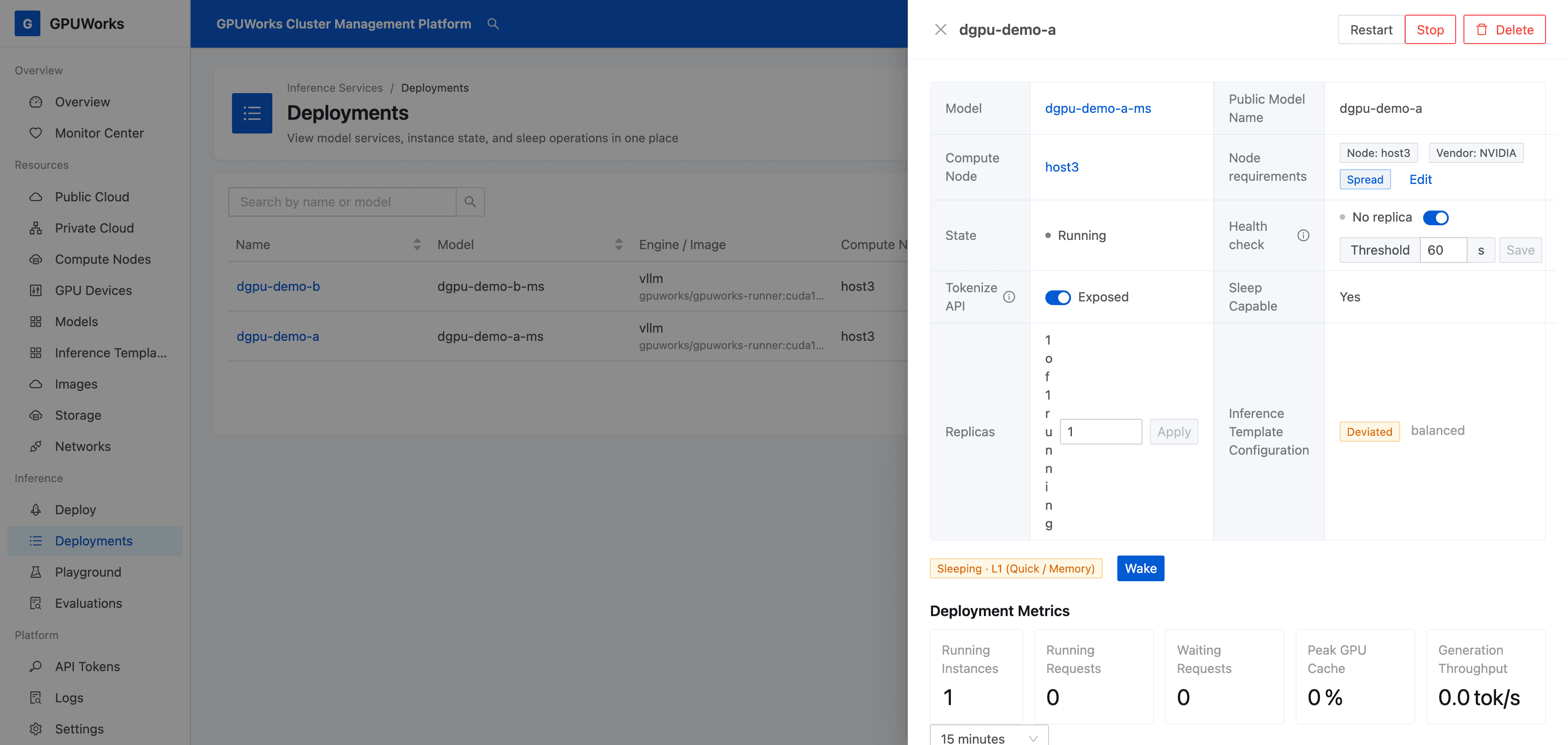
Use the orange Sleeping · L1 (Quick / Memory) label to confirm that sleep is complete. The adjacent Running label does not mean the instance can still handle inference requests at this point.
503 may appear before sleep completes, so check both the sleep label and the request result.
6. Wake A and Verify Both Models Again
- In the deployment details for dgpu-demo-a, click Wake.
- Wait for the Waking up label to disappear from the instance panel. Running alone does not confirm that waking is complete; you must also verify requests.
- In the original terminal, rerun A's and B's commands from section 4. Confirm that both return
HTTP 200and a response, and still use the same GPU.
Final result: A and B share one GPU and can be called separately. Once A finishes entering sleep, only A is rejected by the gateway, while B continues responding. After A finishes waking, both can be called again. For sleep levels, failure handling, and other deployment forms, see Operate Sleep/Wake.
Was this page helpful?